


Goodbye REST & GraphQL — tRPC + Zod is the Stack of 2026
27 May 2026
React Virtuoso: How to Render Huge Lists in React Without the Lag
18 June 2026
How a Tester Can Use Inspect Tools to Become a Pro Tester — A Step-by-Step Guide
Introduction
Many beginner testers focus only on clicking buttons and checking whether features work or not. However, professional testers use Inspect Tools to understand the application’s structure, find hidden issues, create better bug reports, and work efficiently with developers.
Learning how to use Inspect tools can help you become a smarter and more effective tester.
In this blog, we’ll learn how testers can use Inspect tools step by step and improve their testing skills.
What is an Inspect Tool?
An Inspect Tool helps testers view the internal structure of an application.
It allows you to see:
- UI elements
- IDs and locators
- Text values
- Attributes
- Hidden elements
- Network information
- HTML structure (Web Apps)
- Accessibility information
Popular Inspect Tools:
- Browser Developer Tools (Chrome DevTools)
- Appium Inspector
- UIAutomator Viewer
- Accessibility Inspector
- Xcode Inspector (iOS)
Why Should Every Tester Learn Inspect Tools?
Using Inspect tools helps testers:
✅ Understand how the application is built
✅ Find bugs faster
✅ Verify UI elements
✅ Create better automation scripts
✅ Communicate better with developers
✅ Investigate issues deeply
The more you use Inspect tools, the more professional your testing becomes.
Step 1: Learn to Identify UI Elements
The first thing a tester should learn is how to inspect UI elements.
Check:
- Element ID
- Name
- Class
- XPath
- Text
- Position
Example
Suppose a Login button is not working.
Instead of simply reporting:
❌ “Login button is broken.”
A professional tester checks:
- Button ID
- Enabled status
- Visibility
- Clickability
And reports:
✅ “Login button is visible but remains disabled after entering valid credentials.”
This gives developers more useful information.
Step 2: Verify Text and Labels
Inspect tools help verify whether the correct text is displayed.
Check:
- Button text
- Error messages
- Labels
- Placeholder text
Example
Expected:
Password is required
Actual:
Passwrod is required
Inspecting elements helps quickly identify UI text issues.
Step 3: Check Hidden Elements
Many bugs occur because hidden elements behave incorrectly.
Inspect tools can reveal:
- Hidden buttons
- Hidden fields
- Disabled controls
- Invisible popups
Example
A popup appears blank.
Using Inspect, you may discover:
- Content exists
- But CSS or UI properties are hiding it
This helps identify the root cause quickly.
Step 4: Validate Error Messages
Professional testers always verify error messages.
Check:
- Correct message displayed
- Correct timing
- Correct field association
Example
Entering an invalid email should show:
Please enter a valid email address.
Using Inspect tools, you can confirm the message belongs to the correct field.
Step 5: Verify Element States
Inspect tools help verify different element states.
Common states:
- Enabled
- Disabled
- Selected
- Unselected
- Checked
- Unchecked
Example
After selecting “Remember Me”:
Expected:
Checkbox = Checked
Inspect helps confirm the state change correctly.
Step 6: Understand Page Structure
Pro testers try to understand how screens are organized.
Inspect tools show:
- Parent elements
- Child elements
- Containers
- Frames
- Components
Understanding structure helps in:
- Finding UI issues
- Testing edge cases
- Creating automation locators
Step 7: Use Inspect During Bug Investigation
When a bug is found, don’t stop at reproducing it.
Inspect the affected area and gather information such as:
- Element properties
- IDs
- Values
- State changes
Example
Bug:
Submit button disappears.
Additional findings using Inspect:
Button still exists in DOM.
Visibility = Hidden
This makes the bug report much stronger.
Step 8: Learn Basic Network Inspection
Modern applications communicate with APIs.
Browser Inspect tools allow testers to check:
- API requests
- API responses
- Status codes
- Request payloads
Common Status Codes
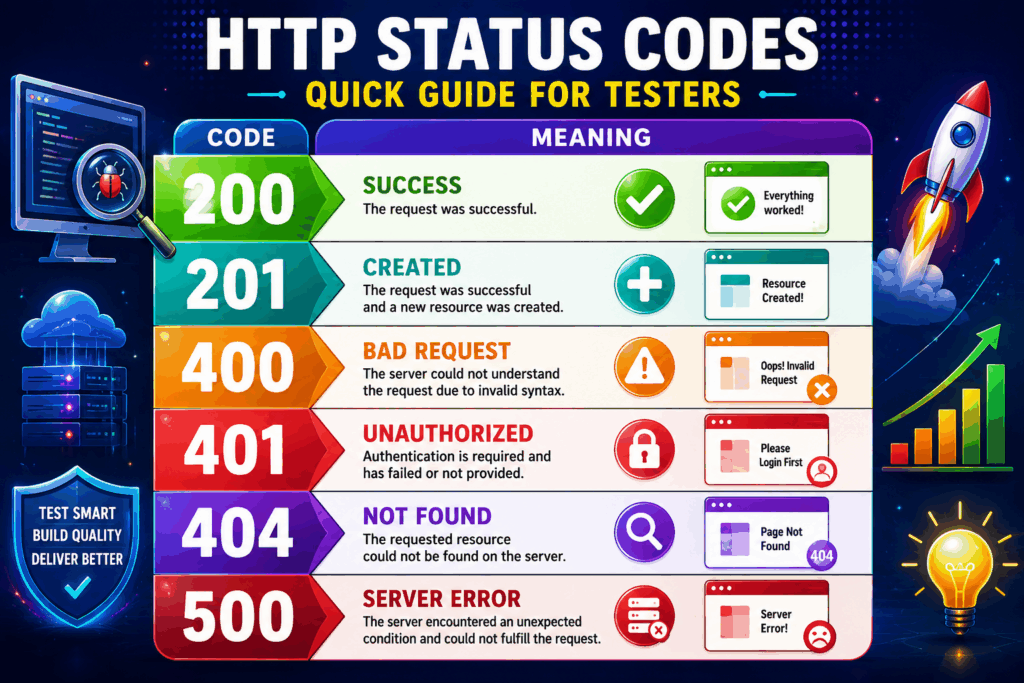
Example
UI shows:
Something went wrong.
Network tab shows:
500 Internal Server Error
Now the tester knows the issue comes from the backend.
Step 9: Verify Responsive Design
Inspect tools can simulate different devices.
Check:
- Mobile view
- Tablet view
- Desktop view
Verify:
- Layout
- Buttons
- Images
- Text alignment
Example
A screen works perfectly on desktop but breaks on mobile.
Inspect tools help identify such issues quickly.
Step 10: Support Automation Testing
Inspect tools are extremely useful for automation testing.
They help identify:
- IDs
- Accessibility IDs
- XPath
- CSS Selectors
Without good inspection skills, creating reliable automation scripts becomes difficult.
Common Mistakes Beginners Make
1. Only Testing from UI
Don’t just click buttons.
Inspect what’s happening behind the screen.
2. Ignoring Element Properties
Properties often reveal the actual issue.
3. Not Checking Network Calls
Many bugs originate from APIs.
4. Writing Weak Bug Reports
Always include findings from Inspect tools.
Pro Tester Workflow
Whenever you find a bug:
Step 1
Reproduce the issue.
Step 2
Inspect the affected element.
Step 3
Check element properties.
Step 4
Check network requests.
Step 5
Capture screenshots.
Step 6
Collect logs if available.
Step 7
Create a detailed bug report.
This process helps testers provide high-quality bug reports.
Benefits of Using Inspect Tools
✔ Faster bug investigation
✔ Better understanding of applications
✔ Stronger bug reports
✔ Improved automation skills
✔ Better communication with developers
✔ Increased testing confidence
✔ Faster career growth in QA
Conclusion
Inspect tools are one of the most powerful skills a tester can learn. A beginner tester may only verify whether a feature works, but a professional tester uses Inspect tools to understand why something works or fails.
By learning to inspect UI elements, verify states, analyze network calls, investigate hidden issues, and gather detailed bug information, you can significantly improve your testing skills and become a more efficient and professional tester.
Remember:
Great testers don’t just find bugs—they investigate them deeply, understand their root cause, and provide valuable information to help the team fix them faster.