

AI Knows React Syntax. It Doesn’t Know Your Users.
15 October 2026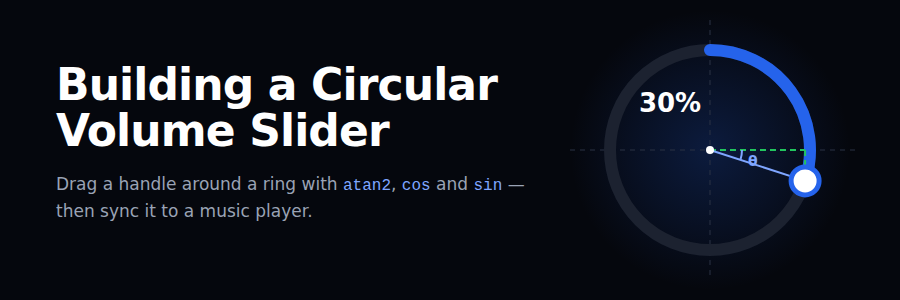
Building a Circular Volume Slider
What we’re building
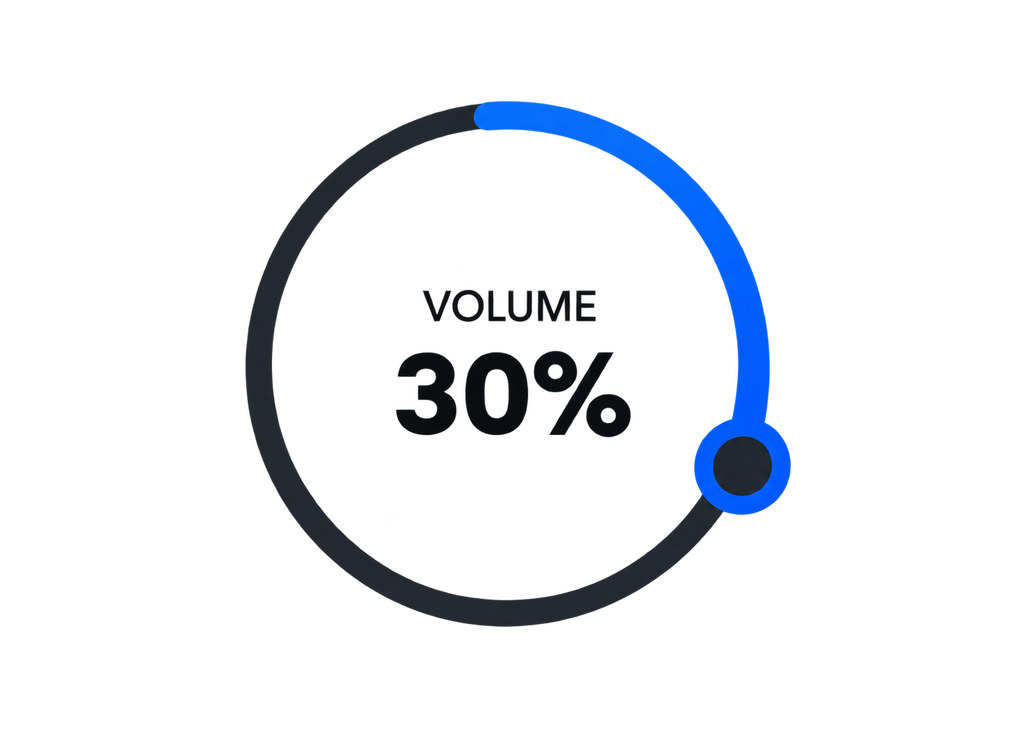
A circular volume knob for a music player using javascript : drag a round handle around a ring, and the volume follows the angle. A normal linear slider sits below it, and both controls always show the same value.
The whole thing runs on one idea: a pointer position becomes an angle, and an angle becomes a percentage. Everything else (drawing the arc, moving the handle, syncing the slider) reads from that single volume value.
1. Understanding the parts
The slider is a large circle (the track) and a small draggable circle (the handle) that always sits on the track’s border.
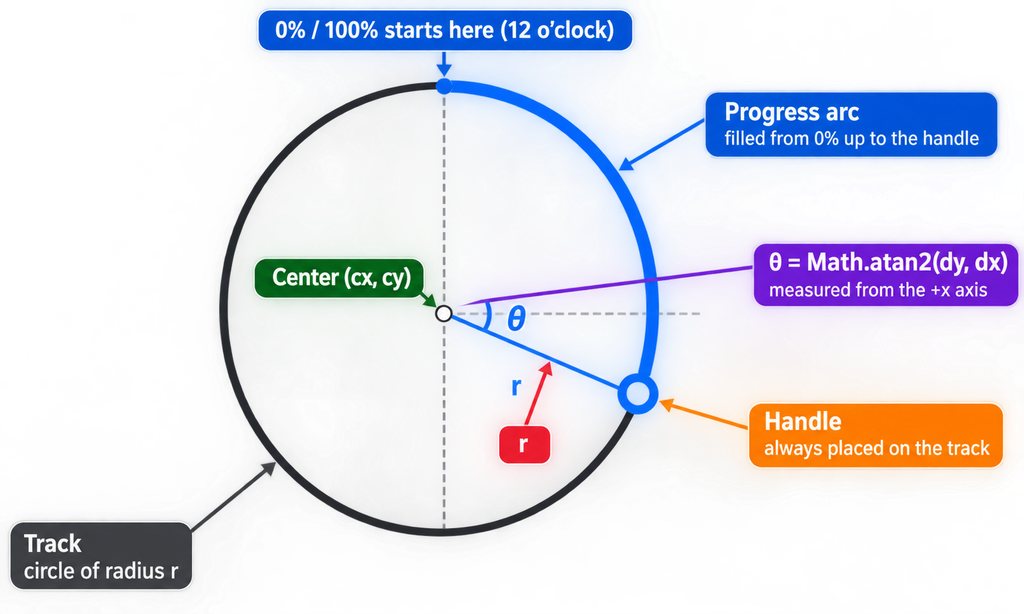
- Center
(cx, cy)— the pivot every angle is measured from. - Radius
r— distance from the center to the track; the handle stays exactlyraway. - Angle
θ— where the handle sits on the circle. This is the only value that changes while dragging. - Progress arc — the coloured part of the track, from 0% at the top to the handle.
2. Turn the pointer into an angle
When the user drags, we know the pointer’s (x, y). Subtract the center to get a vector from the center to the pointer, then Math.atan2 turns that vector into an angle.
function getAngle(e, el) {
  const rect = el.getBoundingClientRect();
  const cx = rect.left + rect.width / 2;
  const cy = rect.top + rect.height / 2;
  const dx = e.clientX - cx;
  const dy = e.clientY - cy;
  return Math.atan2(dy, dx); // radians, -π … π
}- Use
atan2, notatan: it knows which quadrant the pointer is in, so it covers the full circle. - In the browser, y grows downward, so a positive angle means clockwise on screen.
0rad points right (3 o’clock),π/2points down (6 o’clock).- The pointer does not need to be on the ring — any point gives a valid angle, which is why dragging feels forgiving.
3. Put the handle back on the circle
The pointer can be anywhere, but the handle must stay on the track. Keep only the angle, throw away the pointer’s distance, and rebuild the position at radius r.
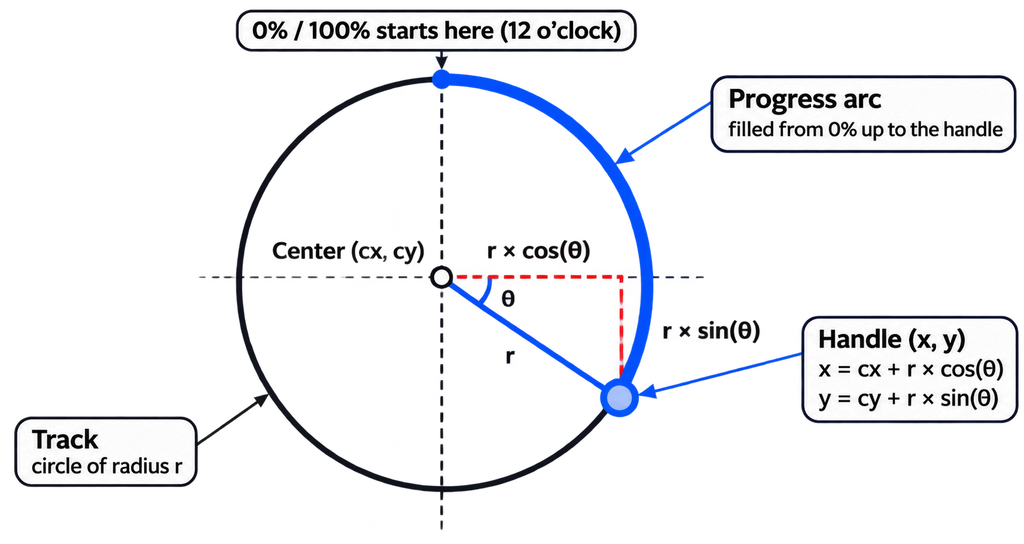
function pointOnCircle(theta, cx, cy, r) {
  return {
    x: cx + r * Math.cos(theta),
    y: cy + r * Math.sin(theta),
  };
}
This is the entire trick behind circular dragging: angle in, point on the ring out.
4. Convert angle ↔ volume
atan2 starts at 3 o’clock and runs from −180° to 180°. A volume knob should start at 12 o’clock and run 0 → 360° clockwise. Two small fixes do that: add 90° to rotate the start to the top, then wrap negatives into 0–360.
// angle (radians from atan2) → volume 0–100
function angleToVolume(theta) {
  let deg = theta * 180 / Math.PI + 90; // 0° now at 12 o'clock
  if (deg < 0) deg += 360;              // -90..270 → 0..360
  return Math.round(deg / 360 * 100);
}

// volume 0–100 → angle (radians, for cos/sin)
function volumeToAngle(volume) {
  return (volume / 100) * 2 * Math.PI - Math.PI / 2; // undo the +90°
}| Volume | Degrees from top | Handle position |
|---|---|---|
| 0% | 0° | 12 o’clock |
| 25% | 90° | 3 o’clock |
| 50% | 180° | 6 o’clock |
| 75% | 270° | 9 o’clock |
The two functions are exact inverses, so the knob can be driven from either side: drag → volume, or slider/volume → handle.
5. Draw the progress arc
No path math needed. Stack two SVG circles: a grey track and a blue one on top. Set the blue circle’s dash length to the full circumference, then hide part of it with stroke-dashoffset.
<svg viewBox="0 0 200 200" id="knob">
  <circle class="track"    cx="100" cy="100" r="80" />
  <circle class="progress" cx="100" cy="100" r="80"
          transform="rotate(-90 100 100)" />  <!-- start at top -->
  <circle class="handle"   r="10" />
</svg>
const R = 80, CX = 100, CY = 100;
const C = 2 * Math.PI * R;
progress.style.strokeDasharray = C;
function render(volume) {
progress.style.strokeDashoffset = C * (1 - volume / 100);
const { x, y } = pointOnCircle(volumeToAngle(volume), CX, CY, R);
handle.setAttribute('cx', x);
handle.setAttribute('cy', y);
label.textContent = volume + '%';
}rotate(-90)moves the stroke’s start from 3 o’clock to 12 o’clock, matching the angle math.- Draw the handle last in the SVG so it sits above the arc.
render()is the only function that touches the DOM; everything else just changesvolume.
6. Handle the drag
Pointer events cover mouse, touch and pen with one code path. setPointerCapture keeps the drag alive even when the finger leaves the knob.
let volume = 30;
let dragging = false;

handle.addEventListener('pointerdown', (e) => {
  dragging = true;
  handle.setPointerCapture(e.pointerId);
});

handle.addEventListener('pointermove', (e) => {
  if (!dragging) return;
  const next = angleToVolume(getAngle(e, knob));
  setVolume(guardWrap(volume, next));
});

handle.addEventListener('pointerup', () => (dragging = false));
The wrap-around bug. At the top, 99% and 0% are neighbours. Without a guard, dragging past 12 o’clock makes the volume jump from 100 to 0 (or 0 to 100). Clamp instead of crossing:
function guardWrap(prev, next) {
  if (prev > 75 && next < 25) return 100; // tried to cross clockwise
  if (prev < 25 && next > 75) return 0;   // tried to cross anticlockwise
  return next;
}
Also add touch-action: none on the SVG so mobile browsers don’t scroll the page while the user turns the knob.
7. Sync the slider and the music
Both controls write to the same setVolume(), and setVolume() updates everything. That single source of truth is what keeps the knob and the slider in step.
const slider = document.querySelector('#volume-slider'); // <input type="range" min="0" max="100">
const audio  = document.querySelector('audio');

function setVolume(v) {
  volume = Math.max(0, Math.min(100, v));
  render(volume);              // knob: arc + handle + label
  slider.value = volume;       // linear slider
  audio.volume = volume / 100; // HTMLAudioElement wants 0.0–1.0
}

slider.addEventListener('input', (e) => setVolume(+e.target.value));

setVolume(30); // initial state
Recap
- Pointer → angle:
Math.atan2(dy, dx)from the center. - Angle → volume: +90°, wrap to 0–360, divide by 360.
- Volume → handle:
cx + r·cosθ,cy + r·sinθ. - Volume → arc:
strokeDashoffset = C × (1 − v/100). - Guard the 0/100 seam so the value never jumps.
- One
setVolume()drives the knob, the slider and the audio.
Final result
Put the pieces together and you get the finished controller: drag the knob or the slider, and both move together because they share one setVolume().